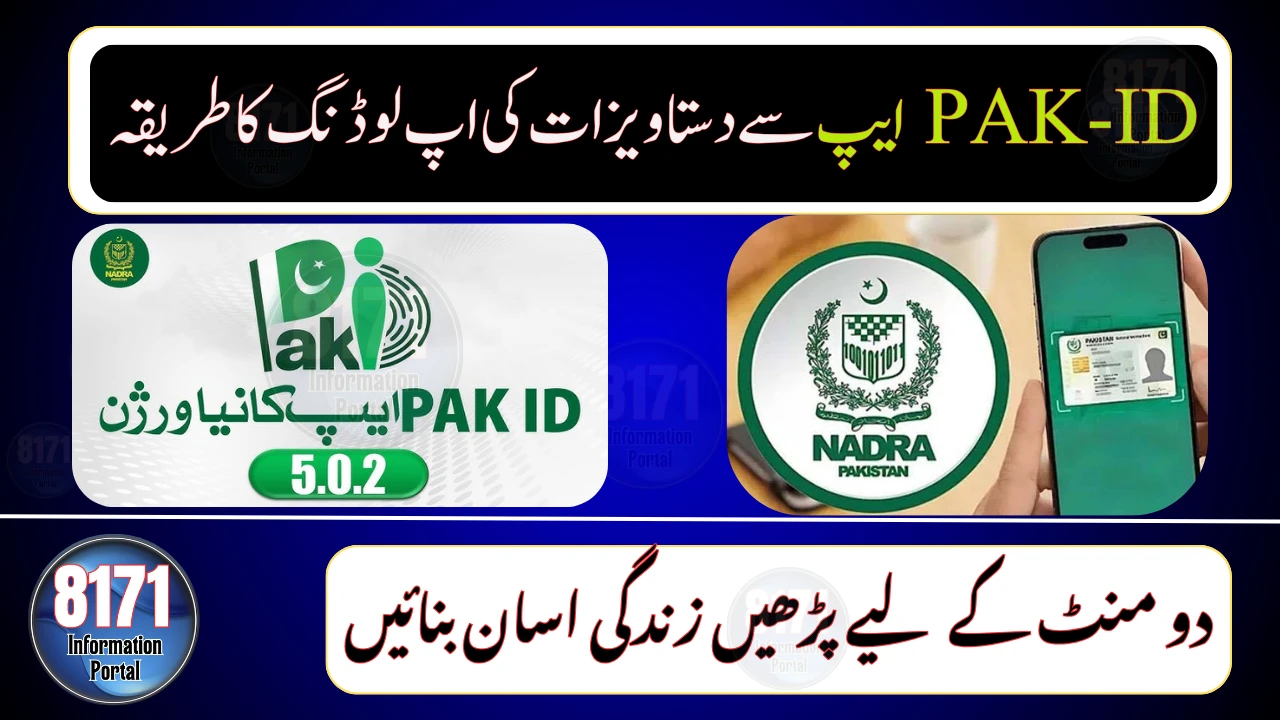
The National Database and Registration Authority (NADRA) has issued important guidelines for Pak-ID app users on how to upload missing or corrected documents during the identity document application process.
When a citizen submits an application through the Pak-ID app, NADRA begins processing it immediately. If any document is missing or an error is found, the applicant is notified directly through the app so the issue can be resolved without visiting a NADRA office.


Step-by-Step Guide to Upload Documents on Pak-ID App
1. Log in to the Pak-ID App
Open the Pak-ID mobile application and sign in using your registered credentials.



2. Access Document Upload Section
On the home screen, go to NADRA Miscellaneous Services and tap on the Upload Documents option.
3. Enter Application Details
Provide your Application Tracking ID and PIN code, then tap on Get Details.
4. View Required Documents
The screen will display a list of documents required for your application. Select the document you need to upload.
5. Upload the Document
You can either:
-
Tap Browse to upload a file from your mobile phone, or
-
Tap Capture to take a fresh photo using your phone’s camera
6. Submit Successfully
Once all required documents are uploaded, a success message will appear on the screen. Your application will be automatically resubmitted for processing.
Why This Feature Matters
According to NADRA, this digital facility is designed to help citizens complete identity verification from home, saving time and avoiding unnecessary visits to NADRA offices. It ensures faster processing and greater convenience for users across Pakistan and abroad.